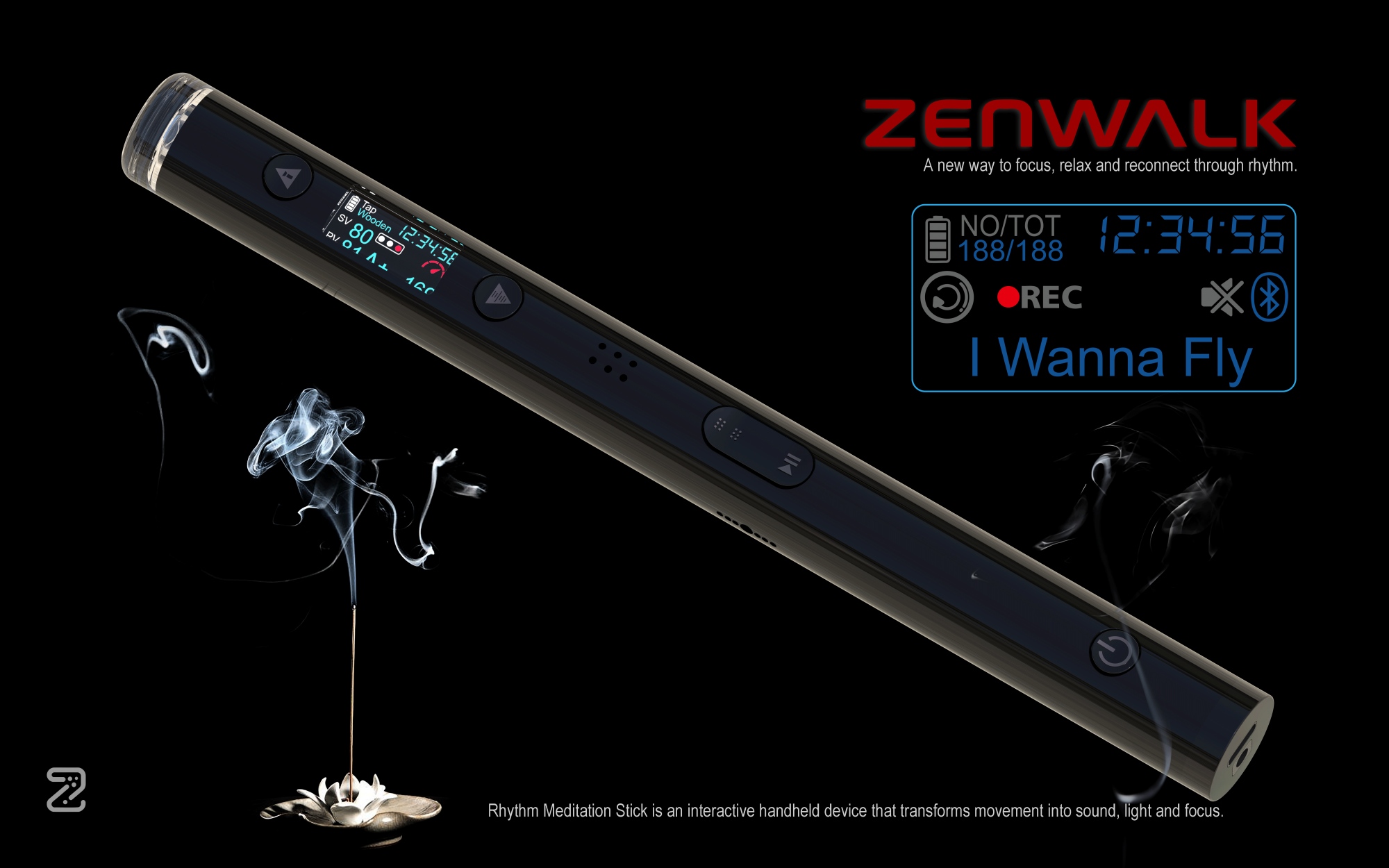
Smart Rhythm Trainer
ZENWALK Z1
Complete FAQ User Guide | Basic Operation · Rhythm Training · Audio · Bluetooth · Recording · Lighting · TF Card File Management · Technical Specifications 中文Chinese
1. Quick Start
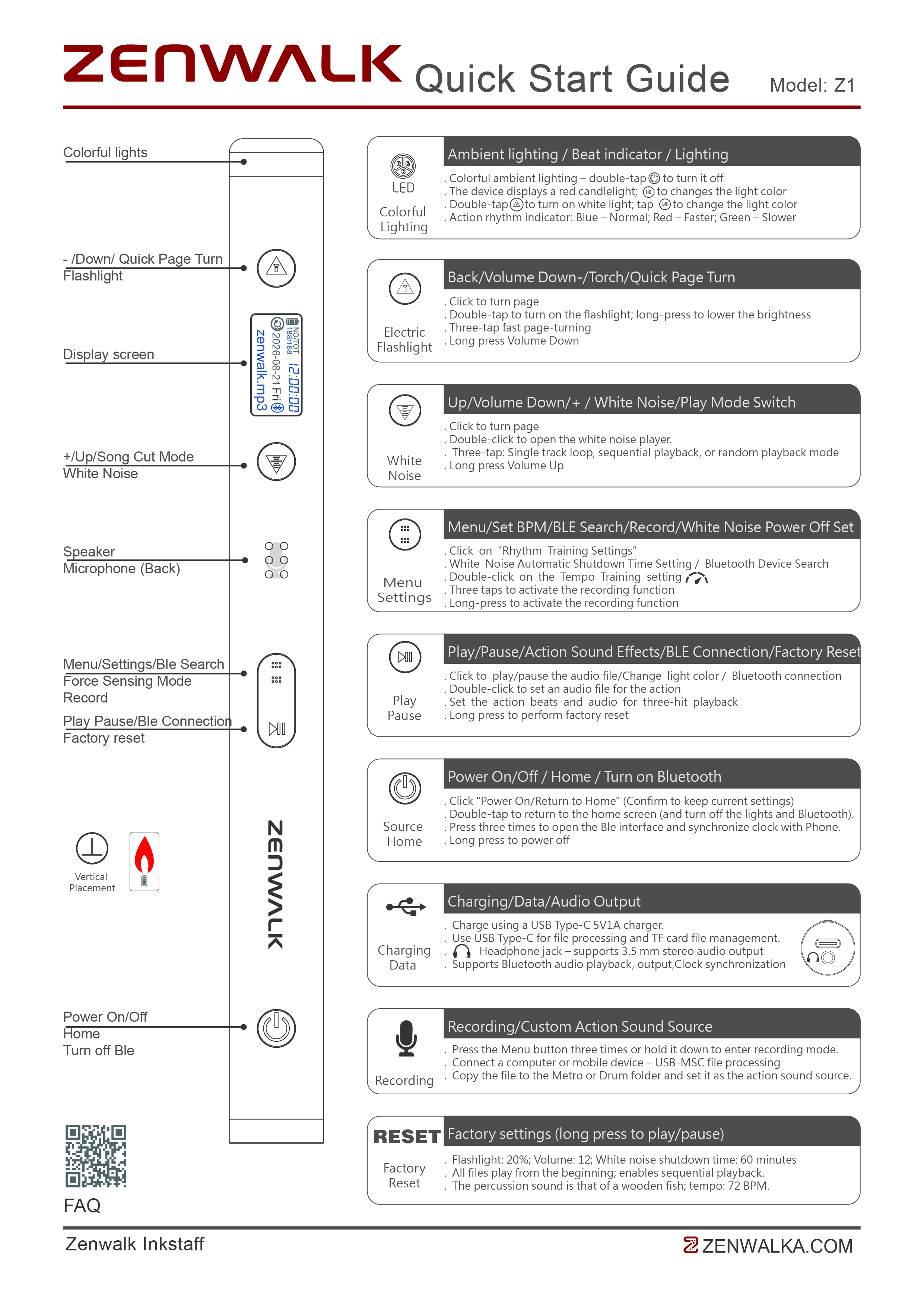
Core Logic: Short press to execute the current function; long press to adjust or enter continuous operation; double-click/triple-click to access special functions. Follow the on-screen instructions for each function.
Short-press the Power button to turn on the device and enter the Home screen. The screen displays the current status, time, audio source, and relevant training information.
Single-click the Power/Home button to return to the Home screen. Depending on the current status, your current settings may be retained when returning home.
Press and hold the Power button to power off the device. Current playback or training will stop when the device is turned off.
Use the Volume + / Volume − buttons: short-press to change the volume by one level; press and hold to adjust continuously. The current volume level is shown on the screen.
In the lighting settings, press and hold the corresponding brightness button to increase or decrease brightness. Double-click to start/pause color changes; double-click to turn off the lighting mode.
Triple‑press the power key to turn on the device’s Bluetooth function. Search for the device on your mobile phone and establish a successful connection to complete time synchronization. The device time will match your phone’s time.
If the clock becomes inaccurate due to power‑off or other causes, reconnect with your mobile phone to re‑synchronize the time.
2. Rhythm Training & Scores
Training Tip: Start with a stable, easy-to-follow tempo, then gradually increase the speed. Keep your movement range and timing consistent, then check your accuracy and grade after training.
SV · Set ValueSet value
PV · Process VariableMeasured value
TapAction selection
Tempo IndicatorTempo indicator
Score RankScore rank
Elapsed TimeElapsed time
Accel DetectAcceleration / motion detection status
Total CountTotal action count
SV (Set Value) is the current target setting; PV (Process Variable) is the actual measured value detected by the device. Compare the two to see how closely your movements match the target tempo.
Accel Detect indicates the acceleration / motion detection status. The device uses a motion sensor to detect training movements and evaluate when movements occur and how they match the rhythm.
Total Count is the cumulative number of actions. It shows how many valid actions were completed during a training session.
| Grade | Accuracy |
|---|---|
| A++ | 99–100% |
| A+ | 95–98% |
| A | 90–94% |
| A− | 85–89% |
| B+ | 80–84% |
| B | 75–79% |
| B− | 70–74% |
| C+ | 65–69% |
| C | 60–64% |
| C− | 0–59% |
① Select a training action;② Set the target tempo/speed;③ Perform the action according to the tempo prompt;④ The device detects action timing and tempo deviation;⑤ Check total count, measured value, and accuracy;⑥ Adjust the training speed based on the grade.
3. Action & Audio Functions
The Tap action audio is built into the product chip. It is not stored on the TF card, and users cannot add, delete, or replace it via the TF card.
Swing and Shake action audio files are stored in the swinshak folder on the TF card. The device uses these files when the corresponding actions are performed.
Home screen music is read from the music folder on the TF card. This directory supports multiple audio formats compatible with the device.
The Music screen supports sequential playback, single-track repeat, and shuffle. Open the corresponding settings and select the desired playback mode.
Yes. The device has a 3.5mm headphone jack. Connect headphones for audio monitoring.
4. White Noise / Lighting / Electronic Candle
Open the White Noise screen to select a playback mode and set an auto power-off time. White noise audio comes from the white folder on the TF card.
Select an auto power‑off time in the White Noise settings. The device will stop playback at the selected time.
In the lighting settings, press and hold the corresponding button to adjust brightness; double-click to start/pause color changes; you can also turn off the lighting mode.
The electronic candle / ambient light provides lighting effects to complement the device audio and usage scenarios. Some lighting effects are available only on the Home screen or during specified audio playback.
5. Bluetooth
Triple-click the Power/Home button to turn on Bluetooth, then enter the Bluetooth device search screen to search for nearby devices.
Open Bluetooth search → wait for the device list → select the target device → wait for the connection to complete. The connection status will be shown on the screen.
Use the Bluetooth off control on the current screen. Double-click Home to return to the Home screen and turn off lighting and Bluetooth.
6. Recording
Enter Recording and follow the on‑screen prompts to start recording. The Recording screen shows REC status, file name, TF card capacity, and recording time.
Recording files are saved in the JL_REC folder on the TF card. You can copy them to a computer for backup.
The Recording screen can display the file number, remaining/total capacity, and other information. For example, GBFREE indicates storage space information.
7. TF Card File Management
Important: Different folders correspond to different functions. Keep folder names, directory structure, and purposes unchanged. If a folder is accidentally deleted, recreate it in the TF card root directory using the specified name.
TF Card Root
├── JL_REC Recording files
├── metro Electronic metronome audio
├── music Home screen music
├── swinshak Swing / Shake action audio
└── white White noise files
| Folder | Function | Description |
|---|---|---|
| JL_REC | Recording | Stored recording files |
| metro | Electronic metronome | Files used by the metronome |
| music | Home screen music | Home screen music directory; supports multiple compatible formats |
| swinshak | Swing / Shake | Swing / Shake action audio |
| white | White noise | Playback files for White Noise mode |
1Remove the TF card and connect it to a computer.
2Confirm that the TF card can be read normally.
3Recreate the corresponding folder in the TF card root directory.
4Use these exact names: JL_REC, metro, music, swinshak, white.
5Place the corresponding files in the appropriate folder.
6Safely eject the TF card and reinsert it into the device.
7Open the corresponding function and check whether it has been restored.
Not recommended. The device accesses files using fixed paths. Keep names, capitalization, and directory structure unchanged. Do not create nested directories such as music/music or white/white.
8. Electronic metronome
Electronic Metronome mode uses the relevant audio files in the metro folder on the TF card. This is a functional directory and should not be deleted or renamed.
The electronic metronome provides a stable tempo reference; Rhythm Training combines motion detection, tempo performance, accuracy, and grade scoring to train and evaluate movement timing.
9. Product Specifications
Battery800mAh
Power InputDC 5V
Charging PortType‑C
Headphone3.5mm
Playback TimeApprox. 10 hours
MaterialABS + PC + Aluminum Alloy
Diameter20mm
Length214mm
WeightApprox. 100g
10. Troubleshooting
Short‑press the power key to power on the device and enter the Home screen. After startup, the screen displays current status, time, battery level, audio source and relevant training information.
Charge the device before first use; it takes 2 hours to reach full charge.
When battery is low, the battery icon on the Home screen turns red, and a voice prompt "pls change" will play during playback.
Check whether the white folder exists and contains playable audio. Also check the device volume and the headphone/speaker connection.
Check whether the swinshak folder and action audio files exist and whether they have been moved or renamed.
Tap audio is built into the chip and is not stored on the TF card. If the volume and audio output are normal but there is still no Tap sound, the device itself should be checked.
Check the JL_REC folder. Recording files are stored in this directory by default.